Table of contents
Update prices in other currencies manually
-
Click "Items" in the top tab
-
Click "Products" in the menu
-
Open the product you want to update currency prices for
-
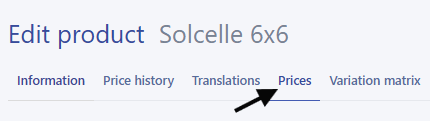
Go to the "Prices" tab
-
Enter the price in the currency that should be updated, and finish by clicking Save.
Do you want to clear a price?
Delete the content in the field and finish by clicking Save.
Import currency prices
Creating the file:You can find it by clicking Import - Example file:
Your file can contain the following information:
-
Product no.: The product item number
-
Currency: The currency you want to update
-
SEK, NOK, GBP, USD, EUR. (How to create your own currencies)
-
-
Cost price: Purchase price in the currency
-
Sales price: Sales price in the currency
-
Recommended price: Recommended retail price in the currency
Example:
| Product no. | Currency | Cost price | Sales price |
| 1375-1 | USD | 24,99 | 55 |
| 1375-2 | USD | 13,25 | 29 |
Importing the file:
-
Click "Items" in the top tab
-
Click "Products" in the menu
-
Open any product — the file defines which products are updated during the import
-
Go to the "Prices" tab
-
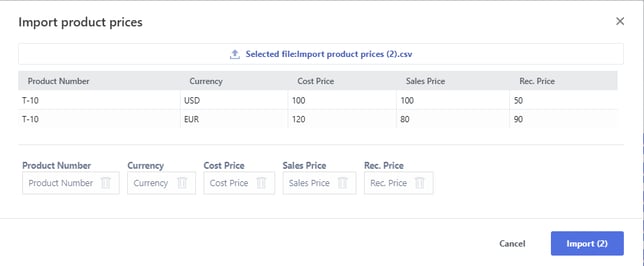
Click Import, and select the file in the pop-up window.
-
Confirm that the columns are mapped to the correct headers, and finish by clicking Import:
Do you want to clear prices via import?
Import a file containing the following columns:
-
Product no. – The item number where you want to clear the price
-
Currency – The currency you want to clear
-
Cost price / Sales price / Recommended price – Empty cells will clear existing prices
Example:
| Product no. | Currency | Sales price |
| 1375-1 | EUR |