Table of contents
Registration via invoice
To make the payment of your Rackbeat invoice easier, you can automate it by signing up for our automatic payment solution, Farpay. If you are not signed up for card payment, you will receive an invoice by email, where you will have the option to enroll your agreement in automatic card payment.
Below we will go through step by step, how it's set up:
- You receive your invoice by email, where a copy of the invoice is also attached.
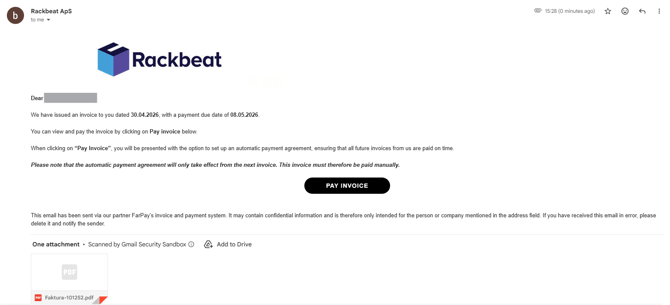
- Click on "PAY INVOICE"
- You will be redirected to a page where you can see the status of the invoice.
- Click on "Pay xxx EUR"
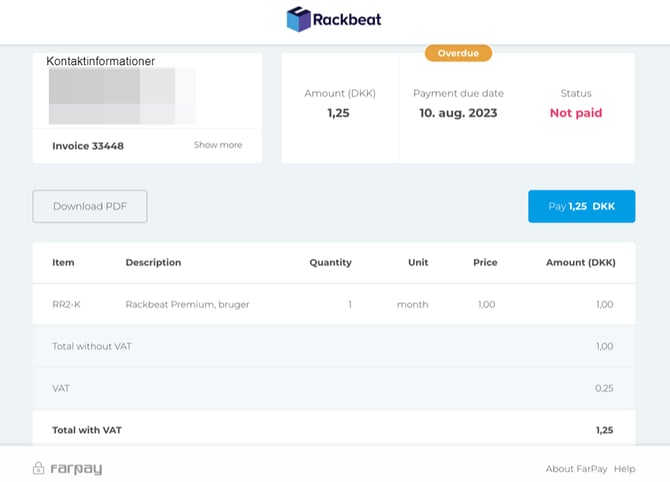
- You will be redirected to a page where you are required to accept our terms of sale and complete the registration process for automatic payment.
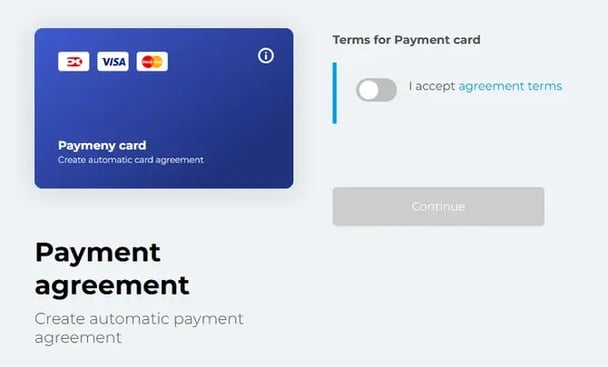
Please note! It is important that you accept by swiping right on the buttom shown in red below, if you would like to enroll your payment in automatic card payment.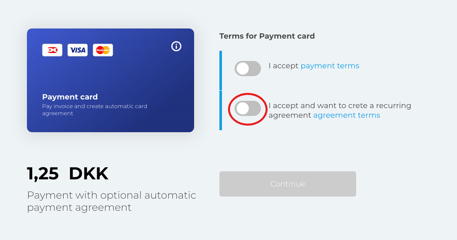
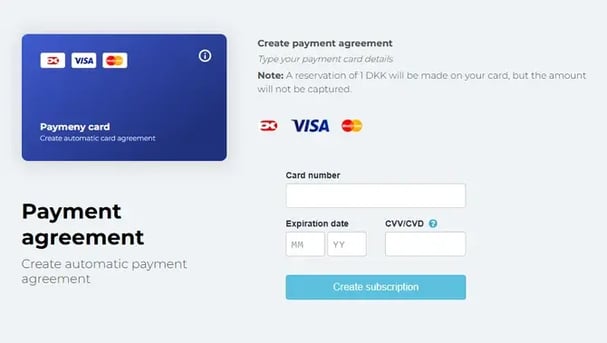
- Continue to the next page, where you provide payment information and confirm registration.
- You are now signed up for automatic payment!
Registration through Rackbeat
To sign up for automatic payment directly in Rackbeat, please do the following:
-
Go to your company settings by hovering the marker over your name in the top-right corner.
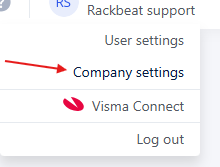
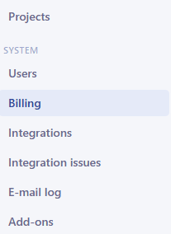
- Click on Billing in the left menu.
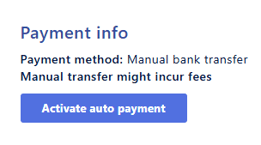
- Click on 'Activate auto payment'
- Accept the terms and click 'Continue'.
- Enter your payment details and click "Create subscription"
If you have questions about your invoice or need help with card payments, please contact us at billing@rackbeat.com.
How do I update or remove my card?
It is currently not possible to update or remove your payment card directly in Rackbeat after it has been added.
To remove your current card or update your payment details, please contact our billing team at billing@rackbeat.com.
They can help remove your existing card or send you a secure link where you can add a new payment card.