To add a service, such as working hours, rent, or shipping—as a line item on an offer, order, or invoice, the service must first be created as a product in Rackbeat.
Since services are typically non-stock items, they should be created in an item group without inventory tracking. This ensures they do not affect your stock levels.
In this article, we will cover:
-
Creating an item group without inventory tracking
-
Creating a product for the service
-
Cost price for services
-
How to change the cost price of a service
If you specifically want to create a shipping method, please refer to our guide on the subject: How to work with Shipping in Rackbeat
Create a product group withot inventory tracking
Before creating your service, make sure it is assigned to an item group without inventory tracking. This allows the product to be used on offers, sales orders, and invoices without affecting your inventory levels.
How to create the product group:
-
Go to Items.
-
Select Item Groups.
-
Click "Create new".
-
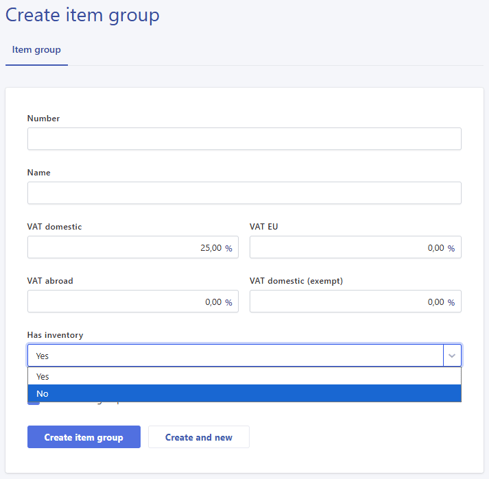
Enter a number and name for the product group.
-
Make sure that the 'Has inventory' field is set to 'No'.
-
Click Save.
Booking in e-conomic
If using e-conomic, you can then go to:
Sales → Products → Product Groups
Here, you can select the revenue account that the product group should be booked on. This allows you to book services to a different revenue account than your regular inventory-tracked products.
Create the product for the service
Once the item group with without inventory tracking has been created, you can create the service as a product.
Here is how:
-
Go to Products.
-
Click "Create new".
-
Enter a suitable product number and name for the service.
-
For example: Working hours, rent, or services.
-
-
Select the item group you created without inventory tracking.
-
Choose a suitable unit.
-
For example: Hours, pcs., or month.
-
-
Optionally, enter a sales price.
-
Click Save.
Cost price on services
Services differ from regular inventory-tracked products because they are not received into inventory. As a result, they do not have a cost price recorded through inventory transactions.
Instead, Rackbeat uses the Expected cost price field to calculate the profit margin for the service.
For example, if you sell labour hours, the profit margin will be calculated based on the expected cost price specified on the product or entered directly on the order line.
How to edit the cost price on the product
If you want to change the expected cost price for the product, follow these steps:
-
Go to Items.
-
Select Products.
-
Find and open the product you want to edit.
-
Scroll down to the Prices.
-
Click Save changes.
This cost price will be used as the default cost for the product when it is added to new offers, orders, or invoices.
How to edit the cost price directly on the Lines
You can also edit the cost price directly on a specific item line on an order.
If adding a new item line
-
Open the relevant offer, order or invoice.
-
Click "+ Item line".
-
Search for and select the product.
-
Click the pencil icon next to Cost price.
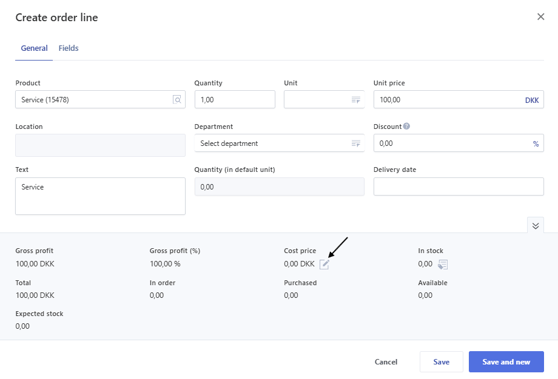
- Insert the desired Cost price.
- Click save.
Editing the Cost price on an existing line
One advantage of products and services without inventory tracking is that you can edit the cost price directly on the item line.
This is especially useful when the cost price varies from case to case, for example for consulting hours, shipping, external costs or other types of services.
-
Open the relevant offer, order, or invoice.
-
Find the line item you want to edit.
-
Hover over the three dots on the right side of the line.
-
Click "Edit".
-
Update the amount in the Cost Price field.
-
Save changes.