In Production you can create, find and manage production orders directly from the Rackbeat app. Among other things, you can select BoMs (bills of materials), register finished production and open the production order as a PDF, all from your phone.
Note: Production in the mobile app is only available on the Premium and Premium+ subscriptions.
To learn how production works on the computer, read Production in Rackbeat.
Table of contents
- Overview
- Create a production order
- View and edit a production order
- Register production
- Register individual lines
- Good to know
Overview
The Production page shows an overview of the company's production orders.
For each production order you can see, among other things:
- Production order number
- Status
- Customer
- Order
- Employee
- Expected date
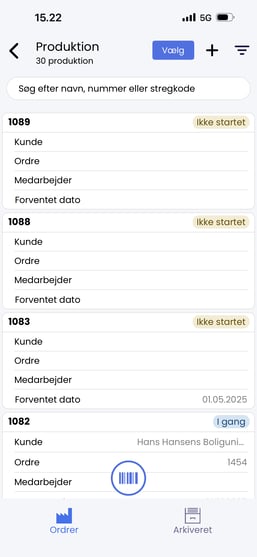
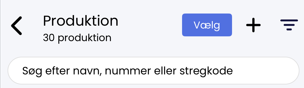
At the top of the page you will find:
- Search: Find production orders by name, number or barcode.
- Select: Select several production orders and merge them into one combined production.
- +: Create a new production order.
- Filter: Narrow the list by status and expected date.
At the bottom of the page you will find:
- Orders: See production orders with the status "Not started" or "In progress".
- Archived: See completed production orders. A production order is moved here automatically when all production has been registered.
- Scanner: The barcode icon in the middle is used to scan with the phone's camera.
Status of a production order
| Status | What does it mean? |
|---|---|
| Not started | No production has been registered on the order yet. |
| In progress | The order has been partly produced. |
| Finished | Everything on the order has been produced, and the order is moved to Archived. |
Create a production order
- Tap + at the top right. The Create production order page opens.
- Fill in the desired information. All fields are optional:
- Note: An internal note for the production order.
- Expected date: When the production is expected to be finished.
- Customer and Order: Link the production order to a customer or sales order. For reference only.
- Employee: The employee in charge of the production.
- Layout: The layout used when the production order is opened as a PDF.
- Under BoMs for production, tap + BoM line.
- Select the BoM to be produced. You can search by name, number or barcode.
- Enter the quantity to be produced.
- Repeat steps 3–5 if several BoMs are to be produced on the same order.
- Tap Create and view to create the production order.
- The Create and view button is grey until at least one BoM has been added.
View and edit a production order
Tap a production order in the overview to open it.
Information inside the production order:
- BoMs for production (number and name)
- Progress, e.g. "0.00 of 1.00"
- Status of each BoM
At the bottom of the page you will find the tabs:
- General: Information about the production order.
- BoMs: See the BoMs on the order and register production.
Via the menu at the top right (the three dots) you can:
- Open a detailed PDF.
- Open a simple PDF.
- Edit the production order.
- Copy the production order.
- Cancel the production order.
Register production
When the item has been produced, you register the production. Rackbeat automatically pulls the components from stock and adds the finished item to stock.
- Open the production order from the overview.
- Tap the BoMs tab at the bottom.
- Tap Register production.
- Check the finished item and its components.
- Tap Location, and select where the finished item should be stored.
- Tap Production date, and select the date. Today's date is selected by default.
- Tap Register to confirm.
Note: The finished item is placed at the selected location. Components are always pulled from their default location.
A registration cannot be undone in the app. Check the quantity, location and date before you tap Register.
Register individual lines
If the production order has several BoMs and only some of them are finished, you can register them one by one.
- Open the production order from the overview.
- Tap the BoMs tab at the bottom.
- Tap Select in the top right corner.
- Select the lines to be registered.
- Tap Register production, and follow steps 4–7 under Register production.
The production order keeps the status "In progress" until all lines have been registered.
[INTERNAL NOTE – MUST BE CONFIRMED] Can you register a partial quantity on a line (e.g. 2 of 5) by tapping the finished item under Register production? If so, add a step here.
Good to know
Read on for an overview of other useful information about production in the mobile app.
Filter the production list
Tap the filter icon at the top right to narrow the list. You can filter by:
- Status: E.g. only production orders that are "In progress".
- Expected date: E.g. production orders that are due to be finished within a specific period.
Merge several production orders into one
You can combine several production orders into one combined production.
- Go to Production.
- Tap Select at the top of the page.
- Select the production orders to be merged.
- Merge them into one combined production.
Change the quantity of a component
Under Register production you can see all components in the BoM and the quantity that will be used.
- Components marked "Flexible": Tap the component to change the quantity directly.
- Other components: Go back to the production order, tap the three dots at the top right, and select Edit to change the quantity.
Correct an incorrect registration
A registration cannot be undone in the app. If you have registered incorrectly, you can:
- Produce a negative quantity. This can only be done on the computer. See Production in Rackbeat.
- Adjust the stock quantity of the finished item and the components back.
If a BoM is missing from the list
When you create a production order, only BoMs with the status Open are shown. If the BoM is locked, it must be reopened before it can be selected.