- Start with purchasing: Open Rackbeat and select "Purchasing" in the top bar
- Find your purchase order: Choose "Purchase orders" in the menu to see a list of all of your orders. Find the purchase order you wish to create a receipt for.
-
Create the receipt: When you have found your purchase order, look for the 'three small dots' to the right on the orderline. Click on those and choose 'Create receipt'.

-
Quality assurance: Rackbeat allows you to set up quality assurance settings on your products if they must be quality assured. If this option is selected, you will not be able to receive the goods until you have decided whether the goods have passed the quality assurance or not.
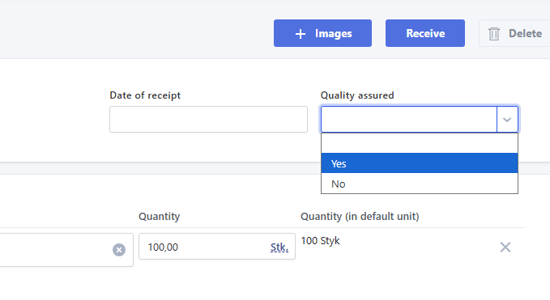
- Upload images: In the upper right corner, you have the option to upload images, e.g. if you want any documentation of what you have received, or there was a small damage to the product or similar.

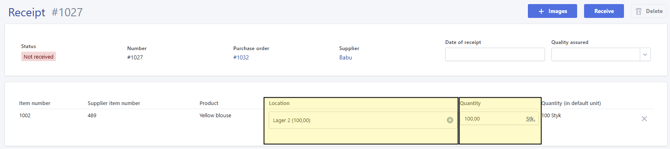
- Adjust the details of the Receipt: By default, a predefined location and quantity are set for the receipt, but these can be modified if needed. If you have not received all items, or if quantity adjustments are required, you can make the changes here. You can also remove a line item if necessary.
-
-
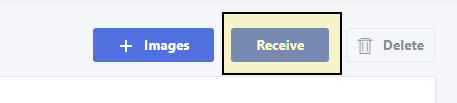
Complete the Receipt: Once you have entered all required information, click “Receive” to confirm the receipt of the goods.
Batch or Serialnumber: If the product has a batch or serial number, you will be prompted to enter this information and select a location for the items. Be sure to always click save.
Once the receipt has been completed, the products will be added to your inventory in Rackbeat!
Create a Receipt via a Supplier Invoice
It is possible to create a receipt in Rackbeat directly from your booked supplier invoice.
Create receipt when booking a supplier invoice
- Create and complete your supplier invoice
- Click on book in the top-right corner
-
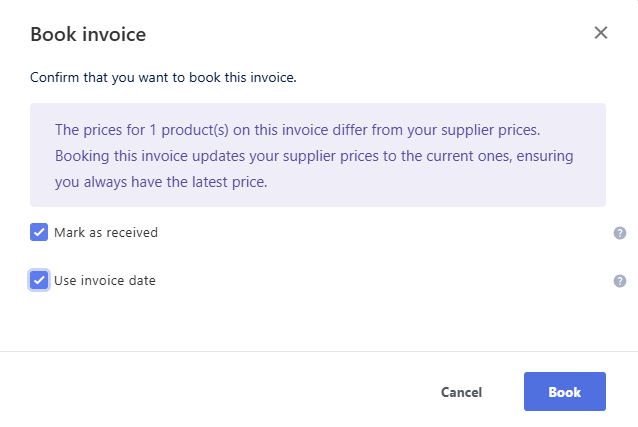
Tick Mark as received
- If desired, tick “Use invoice date” to register the receipt on the invoice date. Otherwise, the receipt will be recorded as of today’s date.
- If desired, tick “Use invoice date” to register the receipt on the invoice date. Otherwise, the receipt will be recorded as of today’s date.
Create receipt from Booked invoice
-
Go to Purchasing → Invoices and open the booked invoice.
-
Click Actions in the top-right corner.
-
Select Create Receipt
The receipt will now be created and opened automatically.
Make any necessary adjustments and confirm the receipt to complete.
Please note: It is not possible to cancel an incorrect receipt in Rackbeat. Instead, you must adjust your stock levels and cost price, or credit the invoice that has been booked.