Creating customer groups in Rackbeat can help you efficiently manage customer-specific discounts and pricing. Follow these steps to create a customer group.
Step by step guide:
-
Select "Sales" in the top bar
-
Click on "Customer groups" in the menu
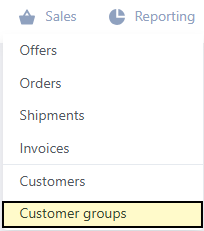
- Create new customer group: Click "Create new" in the upper right corner
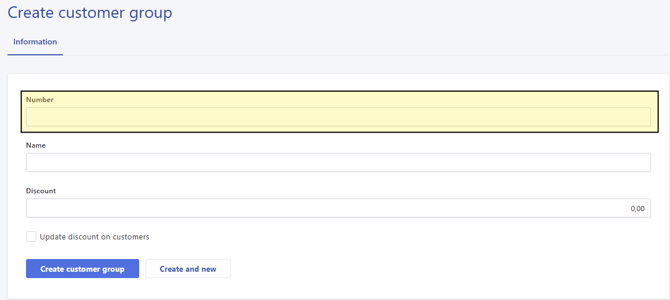
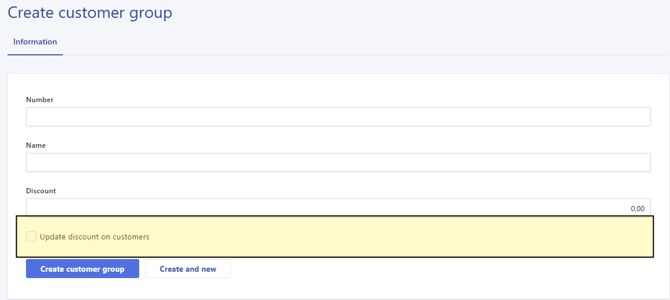
- Give the customer group a number (optional)
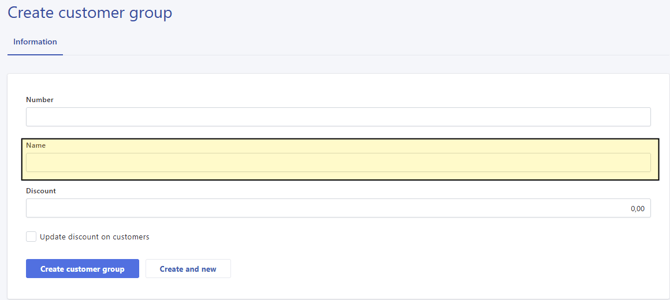
- Give the customer group a name
- Give the customer group an optional discount rate so that all customers in this customer group will receive an 'x' % discount on all items
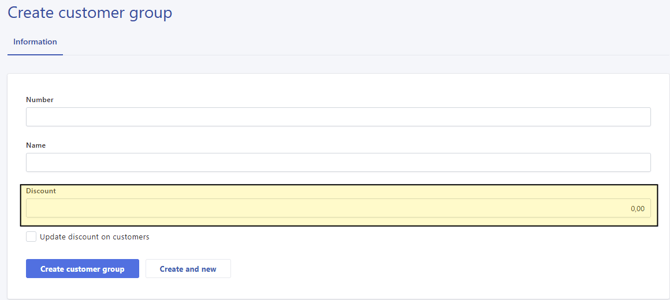
- Choose whether existing customers in this customer group should also be updated with this discount rate.
- Give the customer group a number (optional)
- Press “Create new customer group” to finish, or press “Create and new” (to automatically prepare for creating a new customer group).
Further edit the customer group:
-
Customize Prices: Within the “Products” tab, you can set prices for specific products that will apply to the entire customer group.
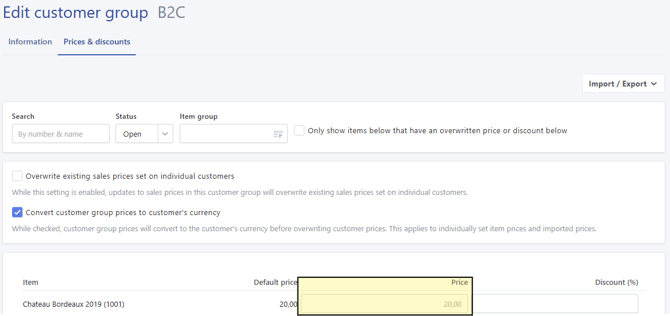
There are also two additional options you can select:
-
Update customer-specific prices?
-
If you enable this option, any customer-specific prices for customers in the group will be overwritten by the prices you enter here. This is relevant if customers already have their own special pricing agreements.
-
-
Convert prices to the customer’s currency?
-
If this option is selected, special prices will be converted to each customer’s currency before their existing special prices are overwritten and before the prices are applied to order lines. This is useful if you work with multiple currencies.
-
-
Import Prices:
You also have the option to import pricing data, which can significantly streamline the process when managing a large number of products.