Table of Contents
- Introduction
- Sales with Batch Management
- Purchasing with Batch Management
- Adjustment with Batch Management
- Tracking of Batch
Batch is part of the Premium+ subscription.
Learn more about our subscriptions and pricing here.
Introduction
The module enables you to manage shelf life, providing an overview of which batches should be sold first based on your inventory and their last sale date.
Batch management is effective whether you purchase goods with a batch number and resell them, or produce batches yourself that you then resell.
With Batch Management you can:
- Manage Batch on item numbers.
- Manage Batch in production.
- Track Batch from purchases.
- Track Batch to customers.
- Work with expiration dates.
Activating the Batch Module on your account
- Hover your mouse over your name in the top right corner and click on "User Settings."
- Select "Add-ons" in the left menu.
- Click "Install" on "Batch" to activate the module.
Activate batch on your product
- Go to Items -> Products or Bill of Materials.
- Open the product you want to activate batch on.
- Select "Has batch management" and click save changes.
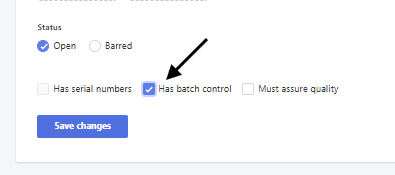
You can also activate batch via import:
- Have 2 columns in your file - Product No. and Has batch management.
- Write 1 in the cell next to the item number to activate batch management upon import.
- Remember to tick "update existing" if the product is already created.
Example:
| Product no. | Has batch control |
| 1001 | 1 |
Note!
Batch management cannot be activated on products without inventory.
Sales with Batch Management
If batch management is activated, it will be mandatory to choose a batch on either order, shipment, or invoice. We recommend the workflow Order -> shipment (select batch) -> Invoice.
- Go to Sales - Order, and create a new one.
- Create a shipment based on the order, and pick your items.
When picking products with batch management, you will be prompted to specify the batch: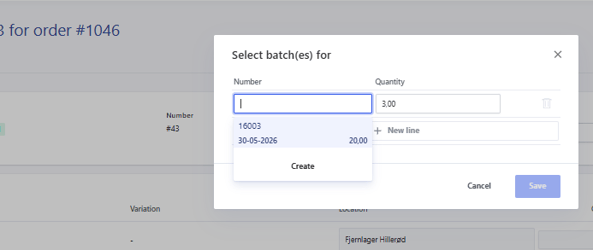
- Select the relevant batch and save.
Do this for all lines and confirm the shipment to complete.
Create the order with the relevant line items, and confirm.
- Create a shipment based on the order, and pick your items.
Purchasing with Batch management
If batch management is activated, it will be mandatory to choose a batch upon receipt.
- Open or create the receipt, either via order or invoice.
- See the guide on creating a receipt here.
-
Click receive, or on the box next to quantity, to choose which batch is received.
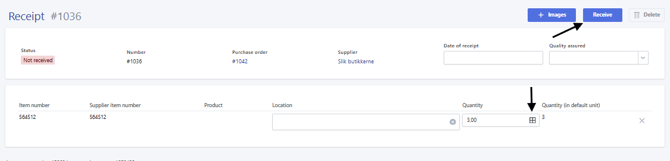
You can always distribute the quantity over multiple batches by specifying the relevant batch + quantity in the pop-up before confirmation.
Adjustments with Batch Management
If you need to manually adjust the stock quantity, you can do so by creating an adjustment.
- Go to Items - Adjustment
- Click on create adjustment, and create your adjustment as usual. Refer to our guide on creating adjustments here.
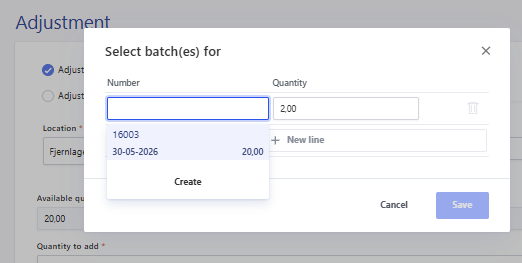
- Upon confirmation of adjustment, you must select which batches you are adjusting.
If the batch does not exist yet, you can create a new one here.
Tracking of Batch Management
For an overview of your batches, you can use reports or check on the product card.
Reporting:
There are 2 reports that can be used to keep track of batches.
-
Batch - Overview of transactions on the batch. Use this report for traceability.

- Search: Enter the batch number to search for a specific batch.
- Product: Enter the item number to search for transactions for a specific product.
- Customer: Search for transactions for a specific customer.
- Supplier: Search for transactions for a specific supplier (purchases).
- Production Order: Search for batch transactions for a specific production order.
- View - All / Incoming / Outgoing: Filter on status for batch.
-
Batch Checking - Overview of which batches are in stock, including location and expiration date. Use this report for counting and overview.

- Search: Enter the batch number to search for a specific batch.
- Product: Enter the item number to search for transactions for a specific product.
Product card:
- Go to Items - Products, and open the product you want to see the batch on.
Click on the "Batch" tab to see and edit the batch on the product
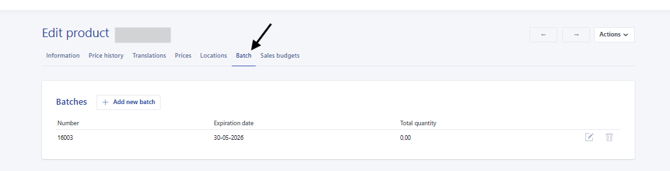
Note, you cannot adjust inventory from this overview. You'll need to create an adjustment for that.