Table of Contents
When should you update the product or the supplier?
There are two ways to register the supplier's product number:
-
Update on the Product
-
Recommended if you only need to register or change the supplier's product number for a single product.
-
This method requires the product to have a "Primary Supplier".
-
-
Update on the Supplier
-
Recommended if you need to maintain multiple products for the same supplier or want to update the information via import later.
-
Update on the Product
If the product has a Primary Supplier, the supplier's product number can be registered directly on the product details page.
How to do so
- Go to Items → Products.
- Open the relevant product.
- Select a Primary Supplier if one has not already been assigned.
- Enter the supplier's item number in the Supplier's Item Number field.
- Click Save Changes.
Once the item number has been saved, you can search using the item product number when creating purchase orders and supplier invoices.
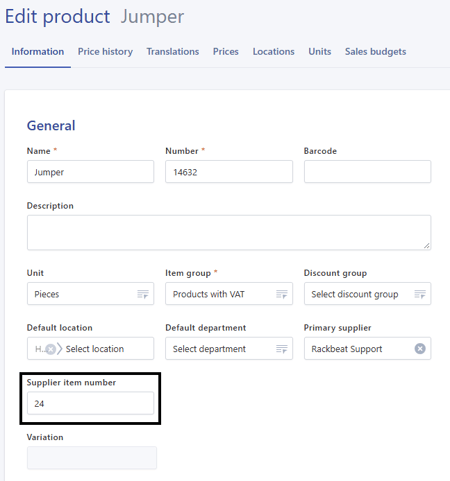
Note: The supplier's item number cannot be updated via product import.
If you want to update multiple supplier product numbers at once, you must use the import function on the supplier.
Update on the Supplier
You can also register the supplier's product number directly in the supplier's product overview.
This method is particularly useful if the supplier has many products.
- Click "Purchasing" in the top menu.
- Click "Suppliers" in the menu.
- Find or search for the supplier you want to update.
- Open the supplier by clicking on the supplier's name or number.
- Select the "Products" tab in the supplier details.
- Find the product you want to update and enter the supplier's product number in the "Number" field.
The changes are saved automatically when you click outside the field.
You can then search using the supplier's product number when creating purchase orders and supplier invoices.
Via Import
- Click "Purchasing" in the top menu.
- Click "Suppliers" in the menu.
- Open any supplier. The import file determines which supplier will be updated.
- Select the "Products" tab in the supplier details.
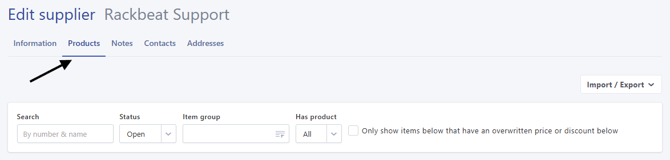
To import supplier product numbers, fill in the following columns in your file:
- *Supplier Number: The supplier's unique number. This field is mandatory and must be completed.
- *Product Number : The specific product number that the row applies to. This field is mandatory and must be completed.
- Alternative Number Enter the supplier's product number. This will update the "Number" field under the "Products" tab on the supplier.
Once you have completed the file, save it as a CSV file and upload it to Rackbeat.
Example:
|
Supplier Number |
Product Number |
Alternative Number |
|---|---|---|
|
1001 |
1375-1 |
2022 |
|
1001 |
1375-2 |
2023 |