Table of Contents
Guide to Exporting
The export function is always located in the top-right corner of Rackbeat. Depending on the module, it may be labelled either Export or Import / Export.
When opening the export function, you will typically be asked to select both a Type and the desired Heading.
The Type determines whether you want to export the main information from, for example, an order, or the associated order lines.
The Heading option is used to define which data fields should be included in the export. Each header corresponds to a specific field within either the order or the order lines and will appear as a separate column in the exported file.
This allows you to tailor the export file according to your specific requirements and reporting needs.
Purchase Orders
For purchase orders, you can export either Purchase Orders or Purchase Order Lines.
You select one of these under “Type” in the pop-up when choosing export:
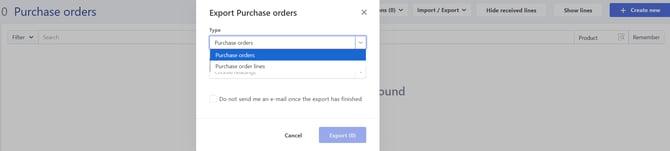
Once the type has been selected, the relevant heading can be chosen.
Each header represents a field within the purchase order or order line and will appear as a separate column in the exported file.
How to find this:
Go to Purchases → Purchase Orders → Import / Export.
-
Purchase Orders – Exports the main data from purchase orders in the overview.
Includes all information on the order, such as address, references, totals, etc. -
Purchase Order Lines – Exports all item lines from purchase orders in the overview.
Contains only the item lines, including all details such as weight, price, quantity, custom fields, etc.
Supplier Invoices
For supplier invoices, you can export either Supplier Invoices or Supplier Invoice Lines.
You select one of these under “Type” in the pop-up when choosing export:
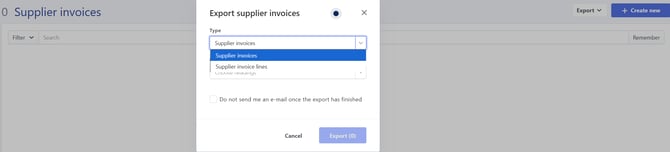
How to find this:
Go to Purchasing → Supplier invoices → Export.
-
Supplier Invoices – Exports the main data from invoices in the overview.
Please note: This does not export the actual PDFs but rather the invoice information from the system to a file.
Includes all invoice data, such as invoice date, supplier invoice number, total, etc. -
Supplier Invoice Lines – Exports all item lines from supplier invoices in the overview.
Contains only the item lines, including all details such as weight, quantity, supplier item number, custom fields, etc.
Suppliers
Exporting suppliers and their information is possible via Purchasing → Suppliers.
Select the relevant headers (or click Select all at the bottom), and click Export to generate a file with all suppliers from the overview.
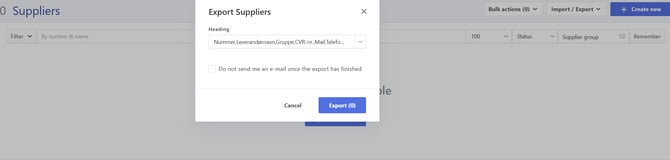
Found under:
Purchasing → Suppliers → Import / Export.
Tip! Sort by a supplier group or filter using a custom field to narrow down your search.
Data Export
Data Export in Rackbeat allows you to export the same data, but with the underlying mapping IDs instead.
When importing to Rackbeat or setting up an API, it is often necessary to use the ID (number) instead of the name for proper mapping. In these cases, Data Export is useful.
How to find this:
Go to Company Settings → Data Export → Suppliers:
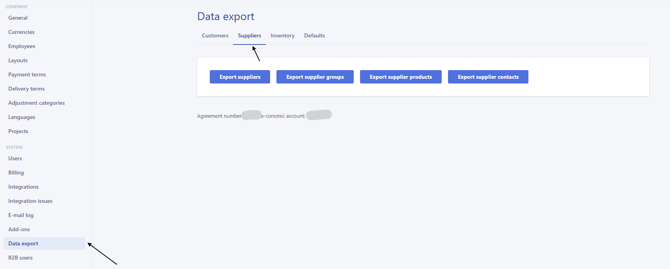
Example:
Standard export of suppliers with payment terms and layout:
| Nummer | Betalingsbetingelser | Layout |
| 1002 | Til omgående betaling | DK. std. m. bankoplys. 1.8 |
Data Export of the same info:
| number | payment_terms_id | layout_id |
| 1002 | 5 | 1 |
TIP! Data Export also shows the creation date/time and the last update timestamp for the exported records.