In the Orders tab, you can create, find, and manage sales orders directly from the Rackbeat app. Search for orders, edit order details, create shipments, and send order confirmations – all from your mobile device.
Table of contents
Overview
The Orders tab shows an overview of the company's sales orders.
For each order, you can view details such as:
-
Order number
-
Customer
-
Order date
-
Order total
-
Invoicing status
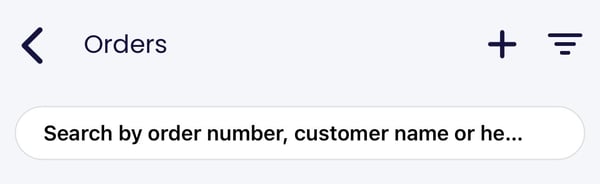
At the top of the page, you'll find:
-
Search: Find orders by order number or customer name.
-
+: Create a new order.
-
Filter: Narrow down the list of orders.
At the bottom of the page, you'll find:
-
My: View all orders where you are set as the Our reference.
-
All: View all orders, regardless of status or reference.
-
Archived: View completed orders.
Create new order
- Click + in the top right.
-
Select the customer the order should be created for.
-
If the customer already exists, you can search for them.
-
If the customer does not exist, you can create a new customer directly from the customer overview by tapping +.
-
- Once the customer is selected, the order will open, and you can fill in the required information, including:
-
Order date
-
Delivery date
-
Currency
-
VAT zone
-
Addresses
-
References
-
Order lines
4. Add Item Lines and/or Text Lines
5. Tap "Send" to confirm the order.
-
- Send email: Enter the customer's email information and tap "Send".
- Don't send email: tap "Skip".
View and edit an order
Tap an order in the overview to open it.
Inside the order, you can view information such as:
-
Customer
-
Subtotal
-
Currency
-
Order date
-
Status: Order status, Invoice status, and Shipment status
-
Addresses
-
References
-
Item lines
-
Summary: Quantity, amount, VAT, gross margin/percentage, and gross price
At the bottom of the page, you'll find the following tabs:
-
General: View general order information.
-
Notes: View or add internal notes to the order.
-
Shipments: View, edit, or create shipments.
-
Emails: View previously sent order confirmations or send a new email.
From the menu in the top-right corner, you can:
-
Edit the order.
-
Open the order as a PDF.
-
Cancel the order.
-
Reopen the order.
-
Delete the order.
Please note: The available actions depend on the order status.
You cannot edit an order that has already been shipped or invoiced.
Process a confirmed order
Once an order has been confirmed, you can continue processing it directly from the mobile app.
From here, you can for example:
- Create a shipment.
- Send the order confirmation by email.
This allows you to manage key parts of the order workflow, even while you're on the go.
Create a shipment
If the order has been confirmed and no shipment has been created yet, you can create one directly from the mobile app.
-
Open the order from the overview.
-
Tap the Shipments tab at the bottom of the text page.
-
Tap Create Shipment.
-
The shipment is created. Tap it to open it.
-
-
Tap Select in the top-right corner, or use the scanner to pick the order lines.
-
To pick the entire shipment, press and hold an item line to automatically pick all lines.
-
-
Tap Ship at the bottom of the screen to confirm the shipment.
Send an order confirmation by email
Once the order has been confirmed, you can send the order confirmation directly to the customer's email address.
-
Open the order from the overview.
-
Tap the Emails tab.
-
Tap Send Email at the bottom of the screen.
-
Enter the recipient's email address and any CC or BCC recipients if relevant.
-
Edit the subject line and email message if needed.
-
Tap Send to send the order confirmation.
Tips
Additional useful information about the order overview.
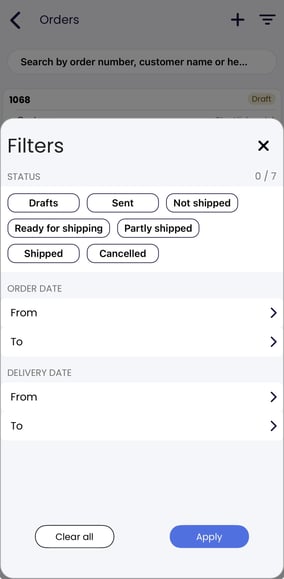
Filter the order list
Tap the Filter icon in the top-right corner to narrow down the order list.
Once you have selected your filters, tap Apply.
Create a new customer
If the customer does not already exist in Rackbeat, you can create them directly from the customer overview when creating a new order.
-
Go to Orders.
-
Tap + at the top of the screen.
-
Tap + again at the top to create a new customer.
-
Fill in the required information.
-
Swipe Create to create the customer and continue creating the order.