Table of contents
- Expected cost price or supplier-specific price
- Update expected cost price in your own currency
- Update expected cost price in another currency
- Update supplier-specific prices
- Automatic update of supplier prices
- Primary supplier and Supplier product number
- Update sales price to maintain margin
Expected cost price or supplier-specific price
When creating a purchase order or a supplier invoice, the purchase price can be retrieved from two different sources:
-
Expected cost price
-
The expected cost price is the product's standard purchase price.
-
It is used as the default purchase price when creating purchases in Rackbeat, regardless of which supplier you select.
-
-
-
Supplier-specific price
-
A supplier-specific price applies only to the selected supplier.
-
If you have defined a price for a specific supplier, that price will be used for purchases from that supplier instead of the product's expected cost price.
-
-
Update expected cost price in your own currency
This can be done manually for an individual product or via import if you want to update multiple products at once.
Update expected cost price manually
The expected cost price is the product's standard purchase price. It is used when creating purchases in the system, regardless of which supplier is selected.
- Go to Items → Products.
- Find and open the product you want to update.
- Scroll down to Prices.
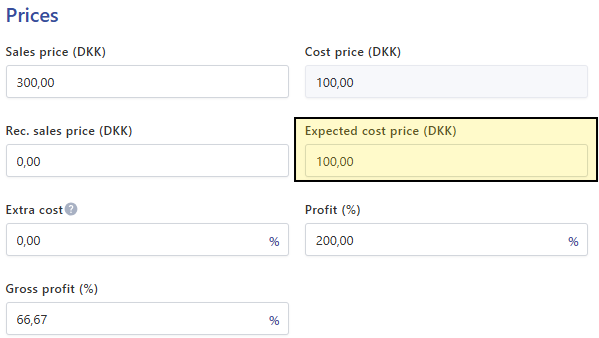
- Update the price in the Expected cost price field.
- Click Save changes.
The new expected cost price will be used the next time a purchase is created for the product in your default currency (unless a supplier-specific price has been defined).
Update expected cost price via import
If you want to update multiple products at once, you can use an import file.
The import file must include the following columns:
- Product no.: The product’s item number
- Expected cost price: Purchase price in your local currency
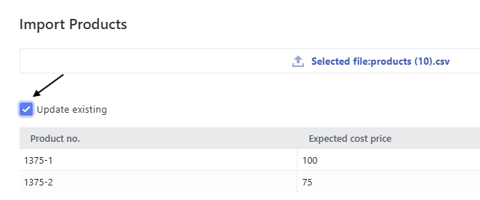
Product no. Expected cost price 1375-1 100 1375-2 75
Save the file as CSV or CSV-UTF8.
How to do it:
- Create a spreadsheet with the columns Product no. and Expected cost price.
- Enter the products and prices you want to update.
- Save the file as a CSV file.
- Go to Items → Products.
- Click Import / Export in the top right corner.
- Click Import.
- Drag and drop the CSV file into the upload area.
- Made sure that the columns are mapped correctly.
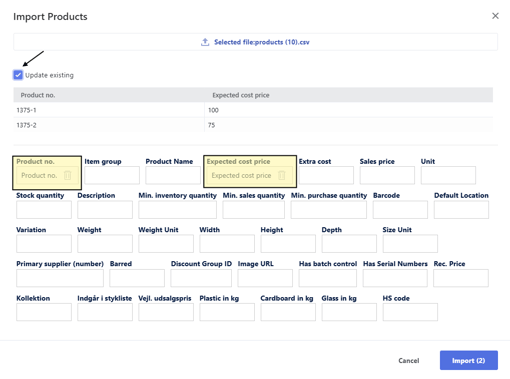
- Click Update excisting
- Click on Import
When the import is finished, the expected cost price will be updated on the specific products.
Update expected cost price in another currency
If you pay a supplier in a different currency than your base currency, you can also update the product’s expected cost price in that specific currency.
Update the price manually
- Go to Items → Products.
- Find and open the product you want to update.
- Click the Prices tab.

- In this you will find an overview of the price in all configured currencies.
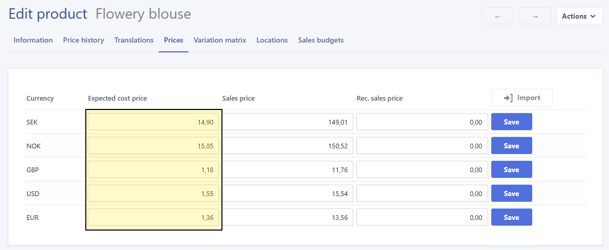
- Please note! Missing a currency? See our guide for creating new currencies: Currency in Rackbeat
- Find and click on the expected cost price field.
- Insert the new price.
- Click save.
Update price via import
If you want to update multiple products in another currency, you can use an import file.
It is recommended to use Rackbeat’s example file as a template.
The import file must include the following:
- Product no.: Your item number
- Currency: The currency code, e.g. USD or EUR
- SEK, NOK, GBP, USD, EUR (How to create new currency)
- Cost price: The new cost price in the selected currency
Product no. Currency Cost price 1375-1 USD 24,99 1375-2 USD 13,25
Save the file as CSV or CSV-UTF8.
How to do it:
- Create a spreadsheet with the columns Product No., Currency, and Cost Price.
- Enter the product numbers and prices you want to update.
- Save the file as a CSV.
- Go to Items > Products > Open any product > Prices.
- Click on Import.
- Drag the CSV file into the field.
- Verify that the columns are mapped correctly.
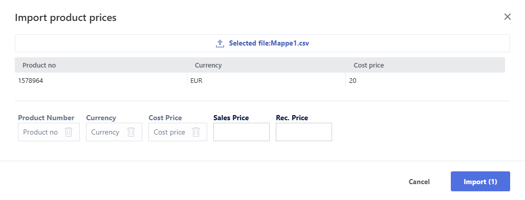
- Click import.
Update supplier-specific prices
If you purchase the same item from multiple suppliers, the price may vary from one supplier to another.
In that case, you can update the price directly for the individual supplier.
Update a supplier price manually
- Go to Purchasing > Suppliers.
- Find the supplier whose prices you want to update.
- Click the supplier number to open the supplier card.
- Click the Products tab.
- Search for the product.
- Enter the new price in the Price field.
Please note! Prices are entered in the currency selected for the supplier.
Update supplier prices via import
If you want to update multiple supplier prices at once, you can use an import file.
It does not matter which supplier you open when performing the import. The file itself determines which supplier and products will be updated.
The import file can contain the following information. Required fields are marked with *.
- *Supplier no. – The supplier's number in Rackbeat. Used to identify which supplier is being updated.
- *Product no. – Your internal product number.
- Supplier product no. – Can be filled in if you want to store the supplier's product number on the product.
- *Cost price – The new price from the supplier.
- Discount – Any discount percentage.
- Enabled – Indicates whether the supplier carries the product. Enter 1 for yes.
| Supplier no. | Product no. | Cost price |
| 10820 | 1375-1 | 24,99 |
| 10820 | 1371-2 | 13,25 |
How to do it:
- Create a spreadsheet with the columns Supplier no., Product no., and Expected cost price.
- Add any other data you want to update, such as the supplier's product number.
- Insert the products and prices you want to update.
- Save the file as a CSV.
- Go to Purchasing > Suppliers > Products.
- Click Import / Export in the upper-right corner.
- Click Import.
- Drag the CSV file into the upload field.
- Verify that the columns are mapped correctly.
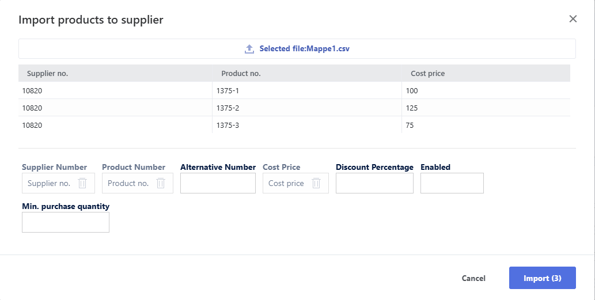
- Click import.
Automatic update of supplier prices
Rackbeat can automatically update supplier-specific prices based on the most recently booked supplier invoice.
This means that when you book a supplier invoice with a new price, Rackbeat can save that price for the supplier so it is used for future purchases.
How to enable this feature:
- Hover your mouse over your name in the upper-right corner.
- Click Company Settings.
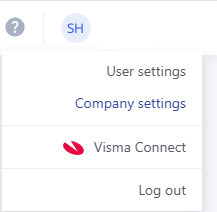
- Under General Settings, click the Advanced tab.
- Find the setting "Update supplier prices when booking supplier invoices".
- Enable the setting.
Once the feature is enabled, the price for the specific supplier will be updated automatically whenever you book a supplier invoice.
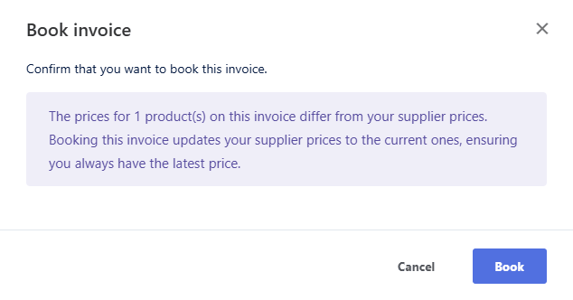
Please note: The price will only update for the supplier associated with the invoice. Therefore, the updated price is not automatically applied to any other suppliers.
Important: When this setting is enabled, it applies to all your suppliers.
As a result, you cannot choose to update prices automatically for only specific suppliers when booking new supplier invoices.
Primary supplier and Supplier product number
On the product card, you can specify a primary supplier.
When a primary supplier has been selected, you will also have the option to enter the supplier's product number for the product.
Primary supplier
-
The primary supplier is used, among other things, when creating reorders or when generating purchase orders from sales orders.
-
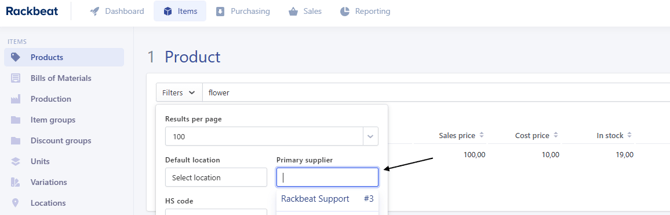
You can also filter by primary supplier in the product overview. This makes it easier to find all products associated with a specific supplier.
Supplier’s product number
-
The supplier’s product number can be used when creating purchase orders.
-
When adding item lines, you can choose to search using either your own product number or the supplier’s product number.
-
The supplier’s product number is also useful when exporting and importing price lists, as supplier price lists often only contain their own product numbers.
Update sales price to maintain margin
If your supplier increases prices, it may be necessary to update your own sales prices to maintain the desired profit margin.
Update sales price manually
- Go to Items > Products.
- Open the product you want to update.
- Go to Prices.
- Adjust the sales price.
- Check the profit margin.
- Click Save.
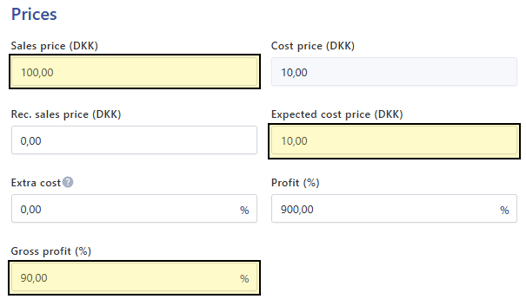
The profit margin is calculated based on the product’s sales price and expected cost price.
Update sales prices via import
If you want to update sales prices for multiple products, you can do so using export and import.
How to do it:
- Go to Items > Products.
- Click Import / Export.
- Click Export.
- Select the relevant columns, for example:
- Product no.
- Sales price
- Expected cost price
- Optionally add extra columns if you want to filter by, for example, product group or location.
- Export the file.
Once the file is opened in Excel, you can calculate the new sales price based on the margin you want to achieve.
Example
This is a guideline example. Therefore, it might not necessarily be the best solution for all companies.
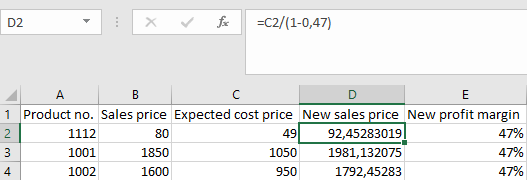
In this example, the purchase prices have been updated, and the sales prices therefore need to be adjusted to maintain a profit margin of 47%.
We have exported the following fields from Rackbeat to Excel:
- Product no.
- Expected cost price
- Sales price
To calculate the new sales price, you can use this formula:
=Cost Price / (1 - 0.47) (Billede)
When the new sales prices have been calculated:
- Save the file.
- Go back to Items > Products in Rackbeat.
- Click Import/Export > “Import”.
- Drag the file into the upload field.
- Check that Product no. is mapped to Product no.
- Check that the new sales price is mapped to Sales price.
- Tick “Update existing”.
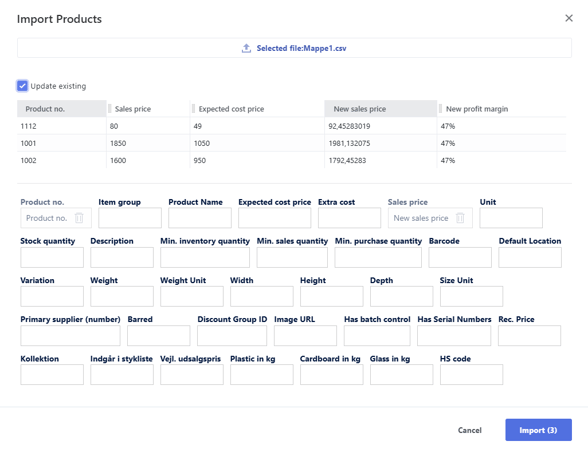
- Click import.
After this, the sales prices for the selected products will be updated.