Table of contents
Create an order via the Purchase tab
In this guide, we will show you how to easily create a purchase order in Rackbeat via the Purchase tab. This is one of several methods available for creating purchase orders in Rackbeat, each supporting different workflows.
- Select Purchasing in the top bar
-
- Click "Purchase orders" in the menu
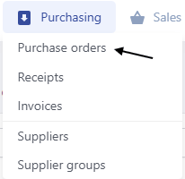
- Click "Purchase orders" in the menu
- Create new
- Click 'Create new' in the right corner
- Choose preferred supplier from the dropdown box or create a new supplier by clicking "Create" at the bottom of the dropdown box and then click ''Create and edit''

- Purchase order details
- Fill out all the relevant details such as References, delivery and payment terms.
- Add lines
- Click on 'Item line' , 'Text line' or 'Add collection' to add one or more lines to your order.
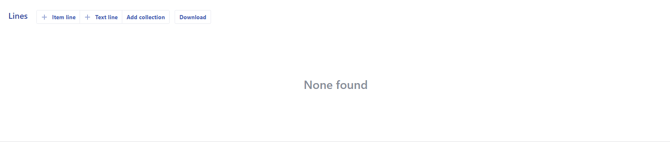
- Click on 'Item line' to add a product - choose the given product you would like to add, specify the quantity and other relecant information for this item line.
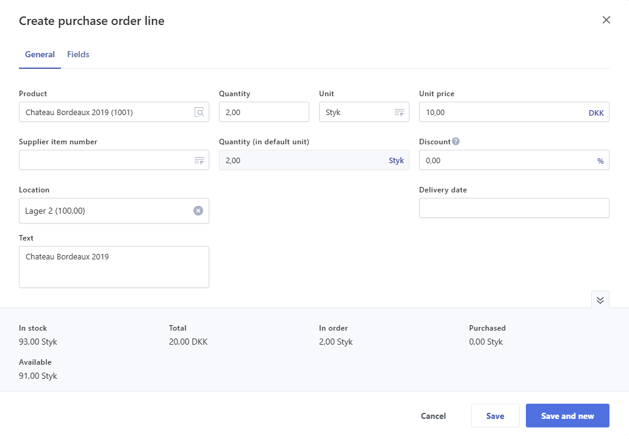
- Click on 'Item line' , 'Text line' or 'Add collection' to add one or more lines to your order.
- Confirm/send purchase order
- Click on 'Confirm purchase order' to confirm the order.
- Choose if you wish to send the order to the supplier and if the order is 'Ready for receiving'
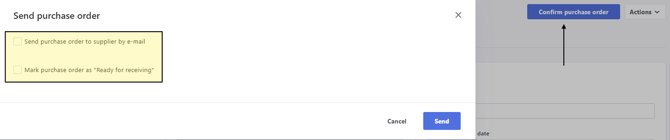
Products to reorder
You can reorder your products on the dashboard.
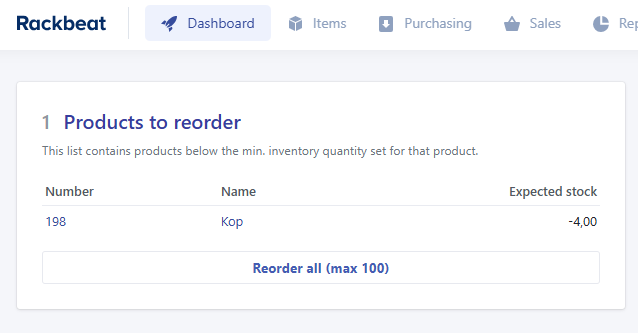
When you click on 'Reorder all (max 100)', a new window will appear that will give you the opportunity to choose a supplier.
If you have already choosen a primary supplier, this will have been preset for you.
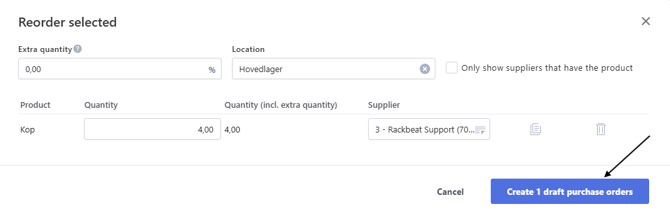
If you click “Create X Purchase order drafts”, your purchase orders will be created as drafts and must subsequently be processed.
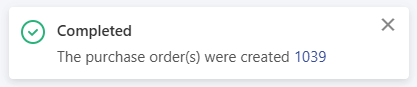
You can now find this in the purchase overview and work with it from there.
The logic behind reordering
Our reorder function in Rackbeat works by comparing the product’s current total inventory level with the minimum stock level defined for the product.
When the inventory level falls below the specified minimum, the product is automatically highlighted in the reorder function and on your reorder report.
Reordering report
You can also make use of our reordering report, which functions similarly to the reorder feature available on the dashboard.
The report can be accessed by navigating to Reporting → Reordering.
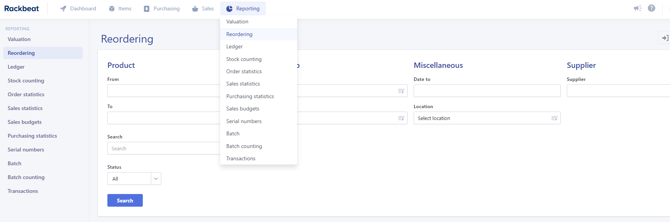
You will have the opportunity to filter, if you do not choose anything, Rackbeat will show all of your products.
Ordering in the Product overview
You can also order products directly in the Product overview.
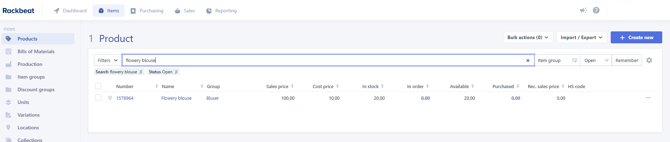
- Go to the Product overview
- Search for the product you want to order
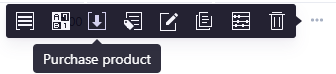
- Hold the curser over the three dots on the right
- Choose 'Purchase product'
- Choose how many you want to order and choose a supplier
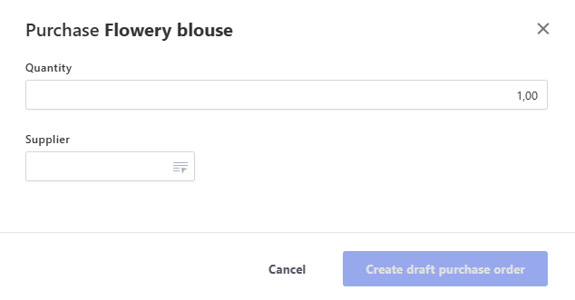
- Create draft purchase order
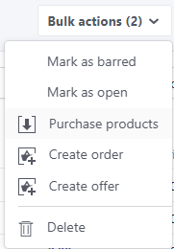
If you would like to order multiple products at once, you can select the products you wish to reorder and place the order through 'Purchase products' in Bulk actions.
FAQ
Can I add negative quantities on my order?
It is not possible to add negative quantities on item lines for quotes, orders, and purchase orders in Rackbeat. In these cases, adjustments must be made via stock adjustment instead.
Can I change the order of my item lines?
Yes, you can rearrange item lines by dragging them using the arrows on the left side of each line.
Can I save filters set via the settings icon in the overview?
Filters are automatically saved once they have been applied. Please note that this is user-specific and will not affect your colleagues’ views.