Table of Contents
- When you have received fewer products than ordered
- When you have received more products than ordered
- What should I do if I have booked an incorrect receipt?
When you have received fewer products than ordered
When creating a receipt, you can specify the quantity received for each product line. This allows you to register a partial delivery if the supplier has not yet delivered the entire order.
How to create a partial receipt from a purchase order:
- Go to Purchasing → Purchase Orders.
- Find or search for the relevant purchase order.
- Create a draft receipt using one of two methods:
- Open the purchase order, go to Actions, and click Create Receipt.
- In the purchase order overview, hover over the three dots on the right and click Create Receipt.
- Adjust the Quantity on the lines in the receipt.
- Complete the process by clicking "Receive".
How to create a partial receipt from a supplier invoice:
- Go to Purchasing → Invoices.
- Find or search for the invoice in the overview.
- Tip: If you want to find an existing invoice using the purchase order number, you can filter by purchase order number under "Filters".
- Click the invoice number to open the invoice.
- Go to Actions in the upper-right corner.
- Click Create Receipt.
- Adjust the Quantity on the lines in the receipt.
- Complete the process by clicking "Receive".
If the remaining products will not be delivered at a later date, you can cancel the remaining purchase order.
- Go to Purchases → Purchase Orders.
- Find and open the purchase order you want to cancel.
- On the purchase order, go to Actions in the upper-right corner and click "Cancel remaining purchase order".
When you have received more products than ordered
You cannot register a received quantity that exceeds the quantity originally ordered.
If the supplier has delivered more products than expected, the additional products must be registered on a new purchase order.
Depending on whether the original purchase order has already been received, the purchase orders can either be merged into a single receipt or only into a single supplier invoice.
How to create a purchase order for the additional products:
- Go to Purchases → Purchase Orders.
- Create a new purchase order for the supplier.
- Add the products and quantities received in excess of the original purchase order.
- Save the purchase order.
Once the new purchase order has been created, you can merge it with the original purchase order.
- Go to Purchases → Purchase Orders.
- Select the relevant purchase orders by checking the boxes to the left of their numbers.
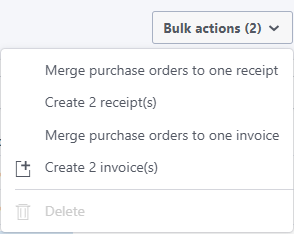
- Click Bulk Actions and select one of the following options:
- Merge purchase orders into one receipt: You can also create one combined supplier invoice.
- Merge purchase orders into one invoice: You can also choose to create one or two separate receipts.
Note: Once a purchase order has been received, it cannot be merged with another purchase order to create a single combined receipt.
However, you can merge the purchase orders into one supplier invoice and then receive the new purchase order separately.
What should I do if I have booked an incorrect receipt?
If you have registered a receipt by mistake, it must be corrected manually.
This may happen if you have booked an incorrect quantity, received the wrong products, or created a receipt for the wrong purchase order.
Depending on the situation, correcting the mistake may involve:
- Creating a credit note for the associated supplier invoice.
- Performing a manual stock adjustment to correct the stock quantity and, if necessary, the cost price.
- Creating a new purchase order and registering the correct receipt.