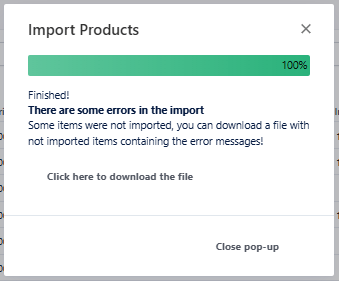
When your import to Rackbeat fails, you will be presented with a pop-up window that resembles something like this
What happens in this situation?
Rackbeat will automatically import the successful lines and create a report for the unsuccessful lines which can help you identify which lines have an error and what to correct. Let's go over that process together.
Identifying unsuccessful lines:
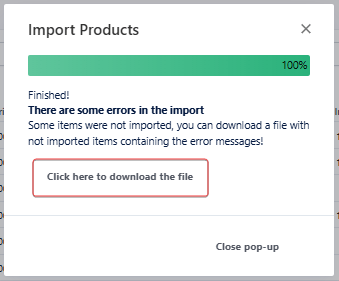
To identify where it went wrong, you can download a file where Rackbeat directly will tell you the error.
-
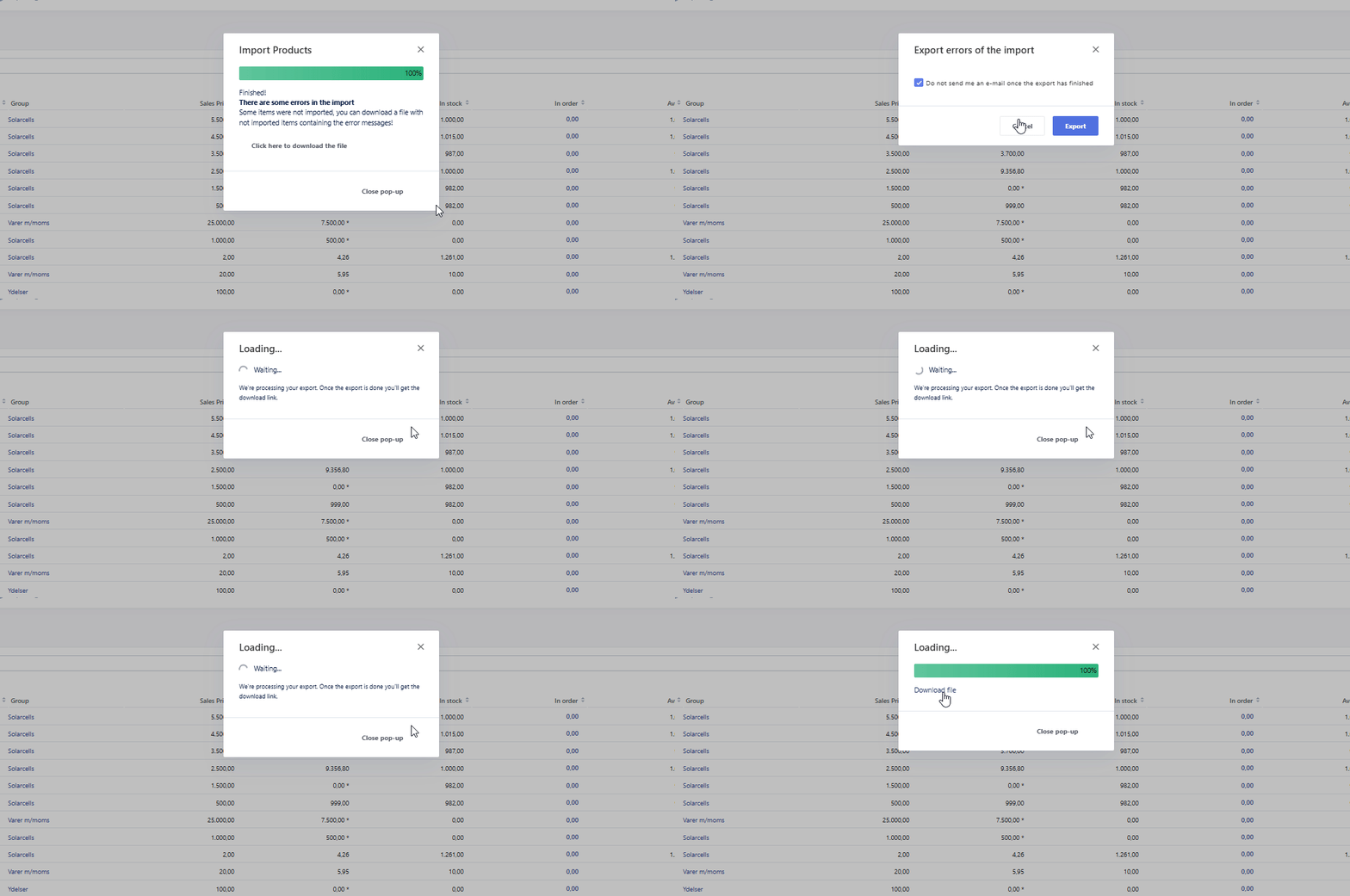
Click the line that says "Click here to download the file"
-
Then you have to click "Export" to export the file and "Download" to download the exported file down on your computer.
3. Open the file that you have downloaded.
A new column will have been created in your file and only the unsuccessful lines
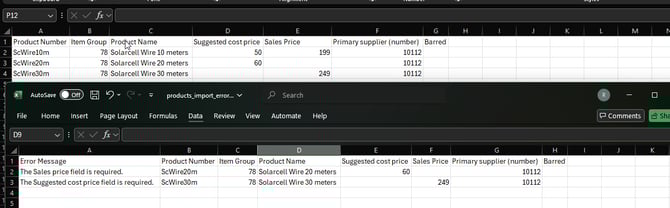
In the picture above you see 2 files, the imported file and the file we have exported with random errors. Let's go over the examples together.
In my example, I am trying to import 3 new products to my Rackbeat agreement. 2 of the products in my file is missing data in required cells and therefore cannot be imported.
Example:
| Product number | Item Group | Product Name | Suggested Cost price | Sales Price | Primary supplier | Barred |
| ScWire10m | 78 | Solarcell Wire 10 meters | 50 | 199 | 10112 | |
| ScWire20m | 78 | Solarcell Wire 20 meters | 60 | 10112 | ||
| ScWire30m | 78 | Solarcell Wire 30 meters | 249 | 10112 |
As you can see in the table above, the products "ScWire20" and "ScWire30" are missing some information in the "Suggested Cost price" and "Sales price" columns. These fields are mandatory when it comes to creating new products.
If we then take a look at the exported file, then we can see the following:
| Error Message | Product number | Item Group | Product Name | Suggested Cost price | Sales Price | Primary supplier | Barred |
| The Sales price field is required. | ScWire20m | 78 | Solarcell Wire 20 meters | 60 | 10112 | ||
| The Suggested cost price field is required. | ScWire30m | 78 | Solarcell Wire 30 meters | 249 | 10112 |
The column with the "Error Message" will help you identify exactly where the import failed. Therefore you can correct this information and import the file again. Should you experience an error once again, try to go over the process once again to see if an error occurred with the newly added information.
An example of this could be if the information that you have entered doesn't match with the information in Rackbeat or perhaps if something is incorrect. That could be if I had entered the "suggested cost price" as "70e" instead of "70".
What if there's multiple errors in my product line?
If you have a product line that is unsuccessful and have multiple errors, you go through the exact same process as explained above. The difference is just that there's more information in the "Error message" Column.

| Error Message | Product number | Item Group | Product Name | Suggested Cost price | Sales Price | Primary supplier | Barred |
| The Sales price field is required. The Suggested cost price field is required. | ScWire30m | 78 | Solarcell Wire 30 meters | 10112 |
As you can see, the field "Error Message" explains that my product line is missing both a "Suggested Cost price" and "Sales Price" before it can be imported.
Other reasons for errors:
- Using the example file correctly?
- Using names instead of ID's?
- Checking the correct columns when importing?
1. Using the example file correctly?
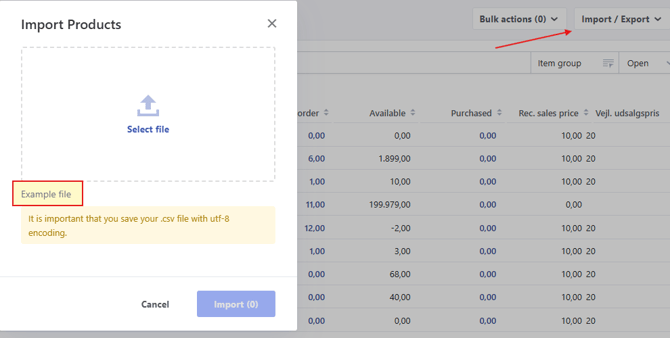
On the 'Import/export'-button on the top right corner, you'll find an example file. You can use this file as a template when preparing your import, to make sure that your data structure is configured c orrectly form the outset.
To import your file successfully, it must be saved in a CSV UTF-8 format. Additionally, please ensure that the file only contains the data required for the import process.
Please note! The template file is not necessarily preset in the CSV UTF-8 format. It may therefore be necessary to reformat the file to CSV UTF-8 beforehand This can be done in Excel.
TIP: In this article you can learn more about which fields are mandatory for importing as well as how the import should be performed depending on what you wish to import.
It is important to always use the CSV UTF-9 format ( comma-separated ) and that your Excel file does not contain any other data than what is necessary for the import.
Click here to learn more: How do you save as CSV UTF-8?
Please note, the column headers are not identical between export and import files. Therefore, always transfer your data from the export file into a new example file before importing.
2. Using names instead of ID's?
When importing data, it is necessary to specify the field ID rather than the field name. For example, when importing layouts, you must use the layout ID instead of the layout name. This is because Rackbeat maps the column headers using their corresponding IDs. Therefore, if the field name is used instead of the ID, the import will fail.
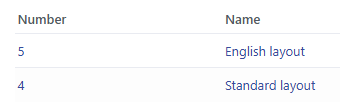
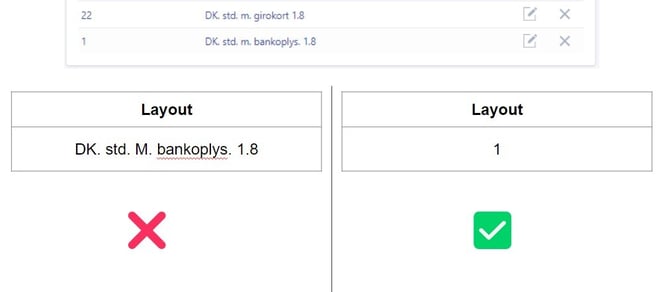
Above is an example of the ID for a specific layout.
When importing, IDs must be defined for the following:
- Product numbers.
- Product groups.
- Discount groups.
- Locations.
- Variants.
- Suppliers & supplier groups.
- Customers & customer groups.
- Layouts.
- VAT zones (1: Domestic, 2: EU, 3: Abroad, 4: Domestic (exempt)).
- Languages (DA: Danish, EN: English, etc.).
- Blocked status (0: No, 1: Yes).
- Payment terms.
- Delivery terms.
3. Checking the correct columns when importing?
Once you have uploaded your file, you will be presented with an overview where you must ensure that the correct column headers are matched to the appropriate fields. You can adjust before completing the import, if something does not match correctly.
How to match the fields correctly
After uploading your file to Rackbeat, you will be shown an overview of the different columns and the fields included in your file.
At Rackbeat we call this to 'map' the fields to the correct boxes.
You may experience that *Rackbeat cannot recognize the name and therefore has not matched it correctly, you will need to drag and match the fields yourself.
If a field has not been matched correctly, you must manually correct the mapping by removing the existing match and then dragging the field into the appropriate box.
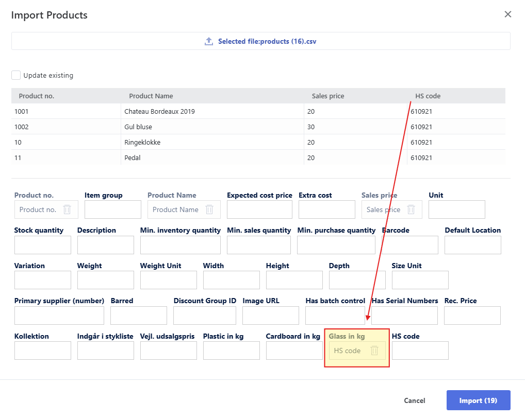
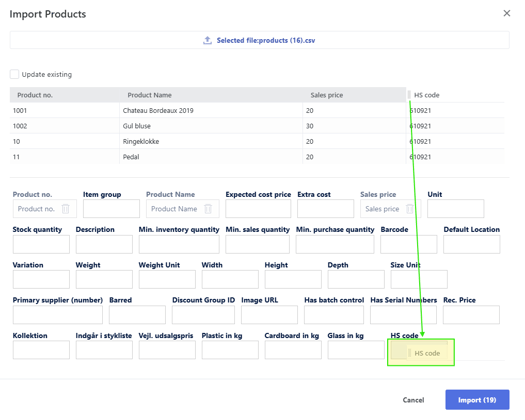
Please note! When updating existing data, the “Update existing” option must be enabled.
4. Importing too much data at once?
For optimal performance, we recommend limiting the Excel file to a maximum of 10,000 rows at a time. Importing large volumes of data in a single batch may increase the likelihood of errors occurring during the import process.
Should errors continue to occur, we recommend testing the import with a single row of data to help identify whether the issue is related to the data structure or formatting.
Still experiencing difficulties? Our Support team will be happy to review the process with you and assist further.
Please click the following article: How to contact Rackbeat Support, to see how to get in touch with our Support department.