Table of contents
The Transaction Report in Rackbeat
The Transaction report in Rackbeat provides a detailed overview of all item-related transactions and their movements within the warehouse.
Accessing the Transaction Report
To access the Transaction report in Rackbeat, follow these steps:
-
Go to Reporting: Select 'Transaction report' from the menu
Filtering Options
You can refine the data in the report by applying the following filters:
-
Product from -> to: If you want to search for a single product or a range of product numbers in sequence, you can filter by this here.
-
Product group: Filter transactions by specific product groups.
-
Adjustment type: Select specific adjustment types such as sales, count or status.
-
Currency: Select transactions in a specific currency.
-
Transaction date: Show transactions based on booking date.
-
Ledger date: View movements within a specified period.
What is the difference between Transaction date and Item card date?
There is an important distinction between these two filter options:
-
Transaction date refers to the date on which the transaction was posted.
-
Item card date indicates the date on which the inventory movement actually affects the stock.
Example:
If an item was removed from inventory on January 1, 2025, but the shipment was confirmed on January 3, 2025:
-
Transaction date: January 3, 2025
-
Item card date: January 1, 2025
Report Contents
Once you have selected your filters and clicked “Search”, the report will show:
-
Transaction date: The date the transaction was booked.
-
Type: The type of transaction: quantity adjustment, shipment, receipt, value adjustment and supplier invoice.
-
Product card date: The date on which the transaction affects the inventory.
-
Product: Name of the product.
-
Quantity and unit value: Quantity and price per unit.
-
Value: Total value of the transaction.
-
Currency: Currency used in the transaction. The value will automatically be converted to your system currency.
-
Location: Name of the location for the movement.
-
Adjustment type: Category of the transaction — Sales, Count, Purchase, Sales, Production.
-
Reason: For adjustments, stock transfers, etc., the reason for the transaction is specified here.
- BOM cost calculation: If the transaction is linked to a bill of materials, check which cost price calculation method was used for the transaction.
Exporting the report will also include the item number.
Customizing the Report
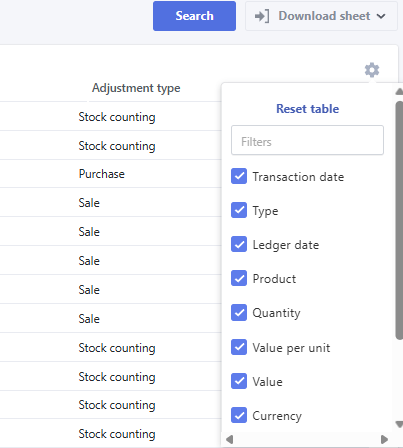
The report can be customized by selecting which columns to display. This is done through the settings available via the gear icon.
I work with negative values - what should I be aware of?
If your company works with negative inventory quantities or values, it’s important to understand how the Transaction report should be interpreted.
The report is designed to show the value of transactions executed within a selected period, but it does not necessarily reflect changes in the warehouse’s actual financial value. This can lead to confusion, especially when negative stock quantities are involved.
When an item has a negative quantity, it means you have sold more than you physically have in stock. In these cases, the Transaction report will still register the value of the transactions. However, because the financial inventory value is based on the actual physical stock and does not treat negative values the same way, discrepancies may arise between the two reports.
How to manage negative values
-
Use the Transaction report to track and understand the value of executed transactions
-
Combine it with the Financial inventory value report to get a complete overview
-
Be aware that large negative stock quantities can lead to unrealistically high values in the Transaction report — adjust your analysis accordingly
-
Consider minimizing negative stock levels to reduce the risk of misunderstandings or distorted data